install.packages("tidyverse")Installing / Updating R & RStudio
ImportantNot Optional Content
As opposed to the latter sections, this section is not optional. Every student is required to have completed each of the steps below to ensure you have the most up to date versions of R and RStudio.
Your workflow refers to the series of good habits you get into in your coding process, that help save you time and headache down the road.
This document outlines our suggestions for getting going with your workflow. None of these items is required for the course; they will simply make your life easier down the road.
1 Updating R
Each of you should have R already installed on your computer, but you might not have the most up to date version of R! Do not ignore these instructions. If you neglect to update your version of R, you may find that updating a package will make it so your code will not run.
- Step 1: Open RStudio
- Step 2: At the top of the the Console it will say what version of R you are using
![A screenshot of what version of R should appear when you open RStudio. The version reads 'R version 4.5.2 (2025-10-31) -- '[Not] Part in a Rumble'.](images/r-version-10-2025.png)
If the version is not 4.5.2 (like the image above), you need to update your version of R! The simplest way to do this is to follow the instructions below to install R.
2 Installing R
Download and install R by going to https://cloud.r-project.org/. Here, you will find three options for installing R—click on the option for your computer’s operating system.
Required-videoRequired Video
If you are a Windows user:
Click on “Download R for Windows”
Click on “base”
Click on the Download link.
When you open the execution file (
.exe) you will be prompted with a variety of questions about installing R. Feel free to use the default features / settings that come with R (continue to click “Ok” until the download starts).
WarningMultiple Versions of R
Beware that if you had a previous version of R downloaded on your PC, that old version will not be deleted when you download the most recent version of R. We do not want to have two versions of R installed, as your computer can get confused what version of R to use. So, you need to remove the old version of R.
To do this you need to:
- Navigate to your computer’s settings
- Click on the “Apps” option on the left-hand panel
- Search for or scroll down to R
- Find the older version of R

- Click on the
...on the right side - Select “Uninstall”

If you are macOS user:
Click on “Download R for (Mac) OS X”
Under “Latest release:” click on R-X.X.X.pkg, where R-X.X.X is the version number. For example, the latest version of R as of July 1, 2024 was R-4.4.1 (Race for Your Life).
When installing, use the default features / settings that come with R (click Ok until the download starts).
3 Updating RStudio
RStudio can be downloaded here
The most recent version of RStudio is 2024.12.1+563. You can check if you are using the most recent version of RStudio by:
- Opening RStudio
- Clicking on “Help”
- Selecting “Check for Updates”
- Choosing “Quit and Download” if there is an update available
4 Installing / Updating the tidyverse
In this class, we will make heavy use of the tidyverse packages.
If you have not used the tidyverse before, type the following into your console:
If you have used the tidyverse before, you only need to update packages. Type the following into your console:
Then follow the instructions that print out to update a few of your tidyverse packages.
5 Configure your options
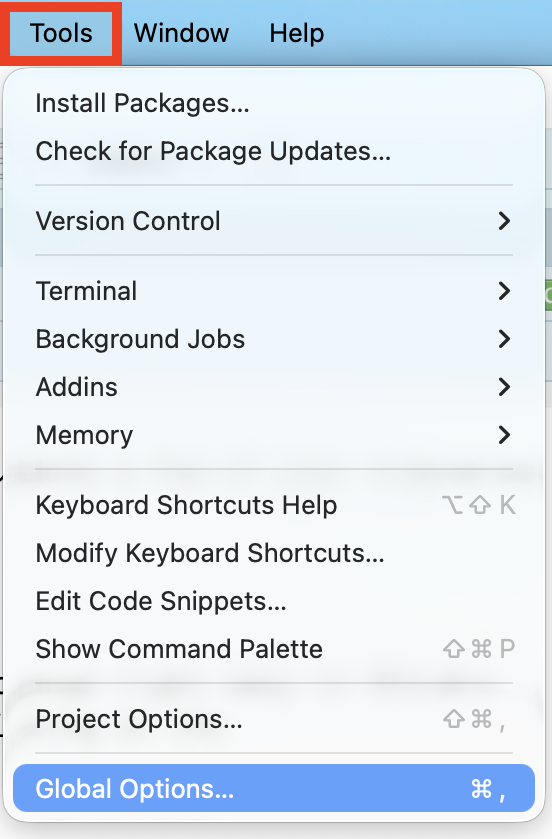
There are a few settings we recommend that you change right away in RStudio. These can be accessed by opening RStudio and clicking on the “Tools” option from the top of the RStudio menu and selecting “Global Options…” from the dropdown menu:
R Workspace
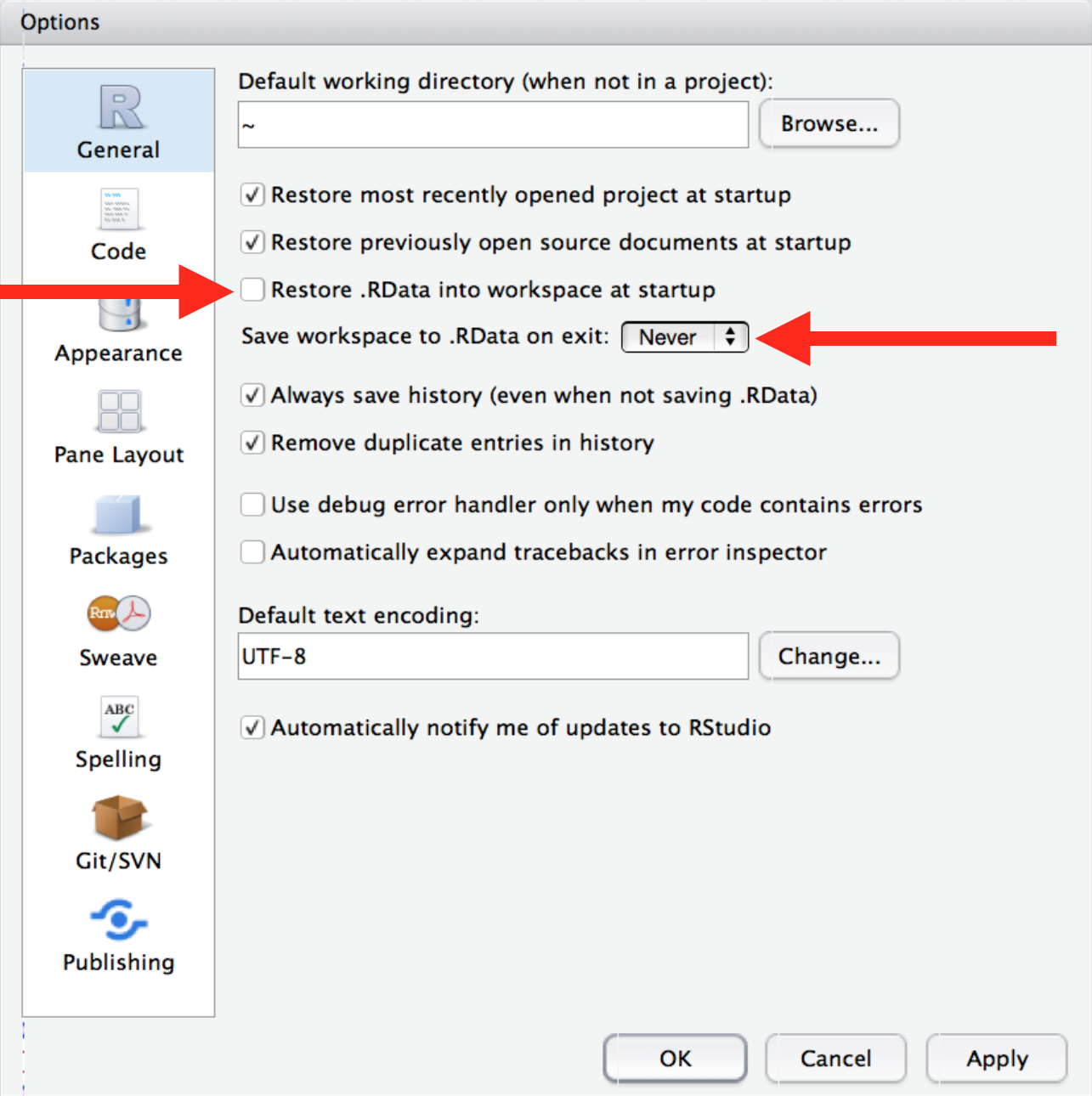
First, in the “General” pane (that first shows up), you should not save your environment when you close RStudio. Meaning, you should uncheck the box that says “Restore .RData into workspace at startup” and you should select “Never” from the dropdown menu that says “Save workspace to .RData on exit”:
Code Chunk Output
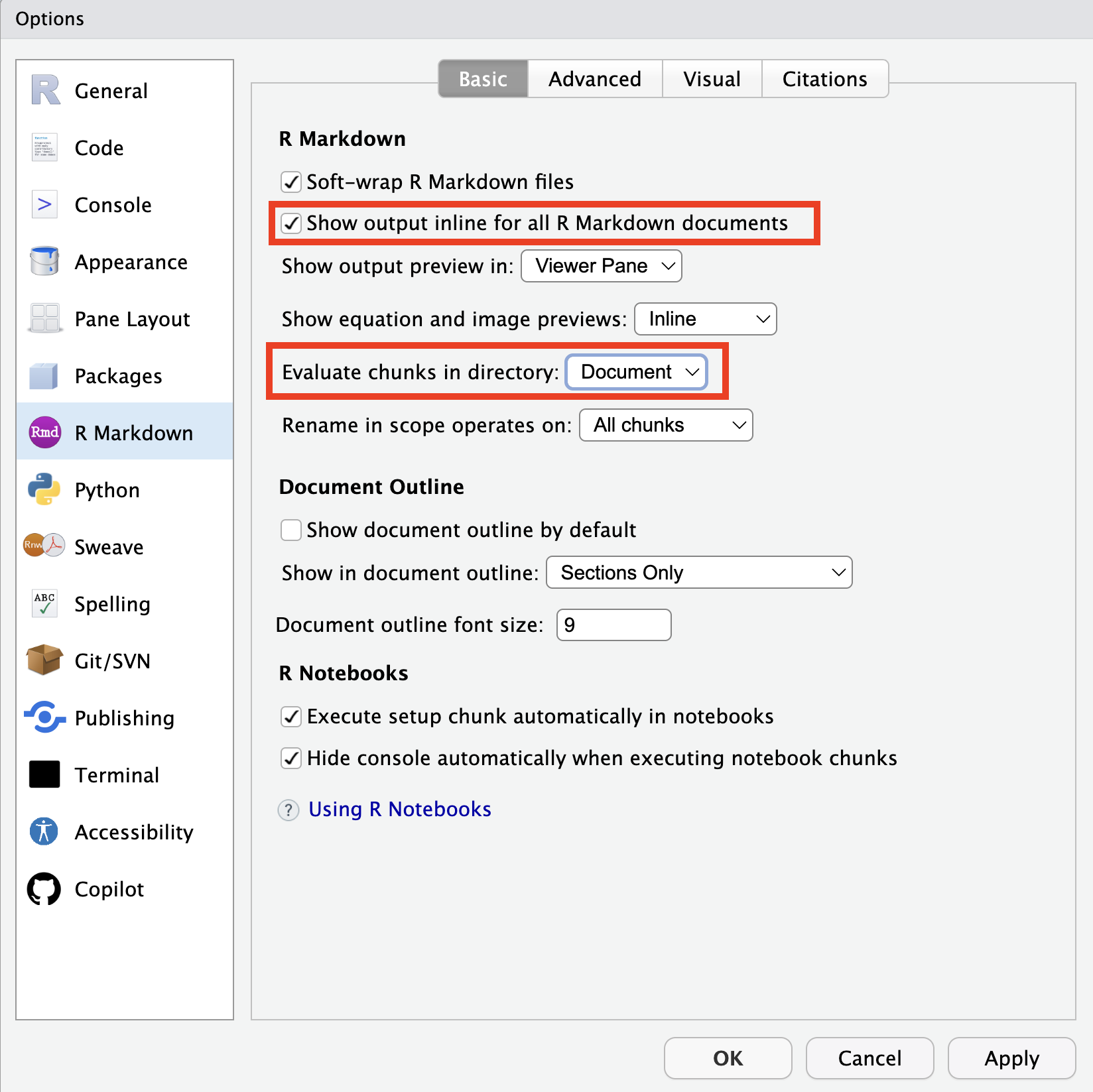
Next, click on the R Markdown pane on the left hand side. This pane allows you to choose how your Quarto documents will behave.
First, let’s decide where we want the output of our code to appear in our document. If you want for the output of your code (e.g., summary statistics, visualizations) to be shown in the document immediately below the code chunk, check the box that says “Show output inline for all R Markdown documents.” If you do not check this box, your output will either be shown in the Console (for numerical summaries) or in the Plots tab (for visualizations).
Second, we need to decide where Quarto should look for files that we are referencing. Meaning, if you reference files, should Quarto look for them relative to the Project or relative to your Quarto Document (which might live in a subfolder or even outside the project). I would recommend choosing “Document” here!
Check-inCheck In
Once you have updated R, open RStudio. If you have correctly installed the most recent version of R, version 4.5.3 should appear at the top of your Console. Take a screenshot of the version of R displayed in your Console.
In RStudio, click on the Help menu and then select “Check for Updates.” If you have correct installed the most recent version of RStudio, the message should say “You’re using the newest version of RStudio.” Take a screenshot of the message that appears.